

10 Best 1080p Monitors in the Philippines 2026 | Xiaomi, BenQ, and More
A good 1080p monitor delivers clear visuals and dependable performance for Filipino users working from home, attending online classes, or gaming. If you're setting up your first desk or upgrading your current display, a 1080p monitor offers sharp image quality without requiring powerful hardware or stretching your budget.
Finding the right monitor is now easier than ever with online platforms like Lazada and Shopee, where you can browse different models and have them delivered straight to your home. In this guide, we'll highlight the best 1080p monitors available in the Philippines, focusing on displays that deliver practical performance without compromising quality.

As a content planner, Jemanuel is fully committed to making sure that consumers can figure out the best choices with ease and convenience. He is always eager to learn new things and is always on the lookout for the latest market and industry trends that can help you make your research much easier.
Why You Can Trust Us
Every mybest article is crafted with hours of in-depth research and interviews with experts. Each month, we are continually expanding our database of products based on our research. By emphasizing user insight and reliable information, we deliver trustworthy content to readers.
How to Choose a 1080p Monitor – Buying Guide
With numerous options available, picking the right monitor depends on your space, usage, and budget. Focus on screen size, refresh rate, and panel type to find a monitor that fits your daily routine.
Pick the Right Screen Size for Sharp and Comfortable 1080p Viewing
Screen size affects how sharp your display appears and how much desk space your monitor takes up. Different sizes offer distinct benefits for visual comfort, so your choice should match your viewing distance and workspace layout.
24-Inch Monitors Provide the Best Balance of Pixel Density and Desk Comfort

A 24-inch monitor offers sharp text and clear images at 1080p resolution, making it ideal for viewing at standard desk distances. It fits comfortably on smaller desks without taking up too much space, which is helpful for compact home offices or dorm rooms. The higher pixel density keeps documents, spreadsheets, and web pages looking crisp and easy to read. If you need clear visuals for detailed work but have limited space, a 24-inch screen provides a practical balance between size and sharpness.
27-Inch Monitors Offer More Screen Space but Slightly Reduced Sharpness

A 27-inch monitor provides more screen space for multitasking and split-screen work, making it a good choice if you regularly open multiple windows at once. The larger display lets you see more content simultaneously, but at 1080p resolution, it has lower pixel density than a 24-inch screen. This means text and images may look slightly less sharp when viewed up close. If you prefer a bigger screen and sit a bit farther from your desk, a 27-inch monitor offers a more practical option for space and clarity.
Go for A Refresh Rate That Matches Your Work, Entertainment, or Gaming Needs
The refresh rate affects how smooth motion appears on your screen. A refresh rate that matches your daily activities ensures smoother visuals without paying extra for features you may not fully use.
60–75Hz Is Enough for Office Tasks, Online Classes, and Video Streaming

Monitors with a 60–75Hz refresh rate are suitable for everyday tasks such as working on documents, browsing the web, and watching videos. They offer stable performance and are generally more affordable than high-refresh models. This range also aligns with the frame rate of most video content, so movies and shows play smoothly.
If you mainly use your monitor for productivity, online classes, streaming, or casual use, and don’t play fast-paced games, a 60–75Hz display provides reliable performance without the added cost of higher refresh rates.
144Hz and Above Delivers Smoother Motion for Gaming and Fast-Paced Visuals

At a refresh rate of 144Hz or higher, motion looks smoother in games and fast-paced scenes. They help reduce motion blur during quick camera movements and improve responsiveness, which can be an advantage in competitive titles. The difference is especially noticeable in shooters, racing games, and other esports-focused genres.
However, these monitors are more expensive and require a capable graphics card to fully take advantage of their higher refresh rates. If you play games regularly or prefer smoother gameplay, a 144Hz monitor offers a noticeable upgrade in overall experience.
Choose a 1ms Panel if You Play Competitive Games and 4–5ms for Casual Tasks

Response time refers to how quickly pixels change color, which directly affects motion clarity. Competitive gamers often prefer 1ms response times because they help reduce ghosting and motion blur during fast-paced action. This can improve visual sharpness in shooters, fighting games, and esports titles where quick reactions matter. If you play competitively or take gaming seriously, a 1ms panel can provide a slight performance advantage.
For casual use, a 4–5ms response time is generally more than enough. The difference is barely noticeable during everyday tasks, streaming, or slower-paced games, and it won’t affect productivity work. These panels are often more affordable and, in many IPS models, offer better color accuracy and viewing angles. If gaming isn’t your main focus, a 4–5ms monitor will suit your needs well.
Opt for an IPS Panel for Better Color Accuracy and Wide Viewing Angles

IPS panels are known for accurate color reproduction and consistent image quality, even when viewed from different angles. This makes them a good choice for content creation, photo editing, and other color-sensitive tasks. Colors remain stable whether you’re seated directly in front of the screen or viewing it from the side. While IPS monitors usually cost more than TN panels, they offer better overall visual quality for everyday use. If you care about vibrant, consistent colors and often share your screen with others, an IPS panel is a great option.
Check Connectivity Options to Ensure Compatibility With Your PC, Laptop, or Console

Connectivity determines which devices you can use with your monitor and what features you can fully access. Below are the most common ports found on modern displays:
HDMI is the most widely used and essential connection. It works with PCs, laptops, gaming consoles, and streaming devices without needing adapters. Since most monitors include at least one HDMI port, it’s the safest option for broad compatibility.
DisplayPort is often preferred for gaming PCs, especially if you want to run higher refresh rates like 144Hz. Many high-refresh monitors require DisplayPort to reach their maximum performance. If you use a dedicated graphics card, this connection helps ensure smoother gameplay at higher settings.
USB-C is convenient for laptop users who want a cleaner setup. It can transmit video, transfer data, and charge your laptop through a single cable. This is particularly useful if you frequently connect and disconnect your device, as it reduces cable clutter.
Choose a monitor with multiple port options if you plan to connect several devices at once. Having the right connectivity helps avoid compatibility issues and makes your setup more flexible for future upgrades.
Look for Comfort Features if You Spend Long Hours Working or Gaming

Comfort features help reduce eye strain and improve posture, especially if you spend long hours working or gaming. When choosing a monitor, look for the following features:
Flicker-Free Technology – Reduces screen flicker that can cause headaches and eye fatigue during extended use.
Low Blue Light Mode – Helps limit blue light exposure, which may reduce eye discomfort and sleep disruption when using your monitor at night.
Adjustable Stand (Height, Tilt, Swivel) – Allows you to position the screen at eye level for better ergonomics and reduced neck strain.
VESA Mount Compatibility – Lets you attach the monitor to a wall or desk arm to improve desk space and viewing flexibility.
If you use your monitor daily for work, study, or gaming, these features can make your setup more comfortable and help prevent long-term strain on your eyes and body.
10 Best 1080p Monitors to Buy Online
| Products | Image | Click to purchase | Popularity | Details | ||||||
|---|---|---|---|---|---|---|---|---|---|---|
Screen Size | Refresh Rate | Response Time | Panel Type | Connectivity Options | Eye Comfort Features | |||||
1 | G24i 2026 Gaming Monitor| Xiaomi |  | No.1 | 23.8in | 200Hz | 1ms | IPS | DisplayPort、HDMI、Audio Out | TÜV Low Blue Light | |
2 | GW2491 Eye Care Monitor BenQ |  | No.2 | 23.8in | 100Hz | 5ms | IPS | Headphone Jack、HDMI、DisplayPort | Flicker‑Free、Low Blue Light、ePaper Mode | |
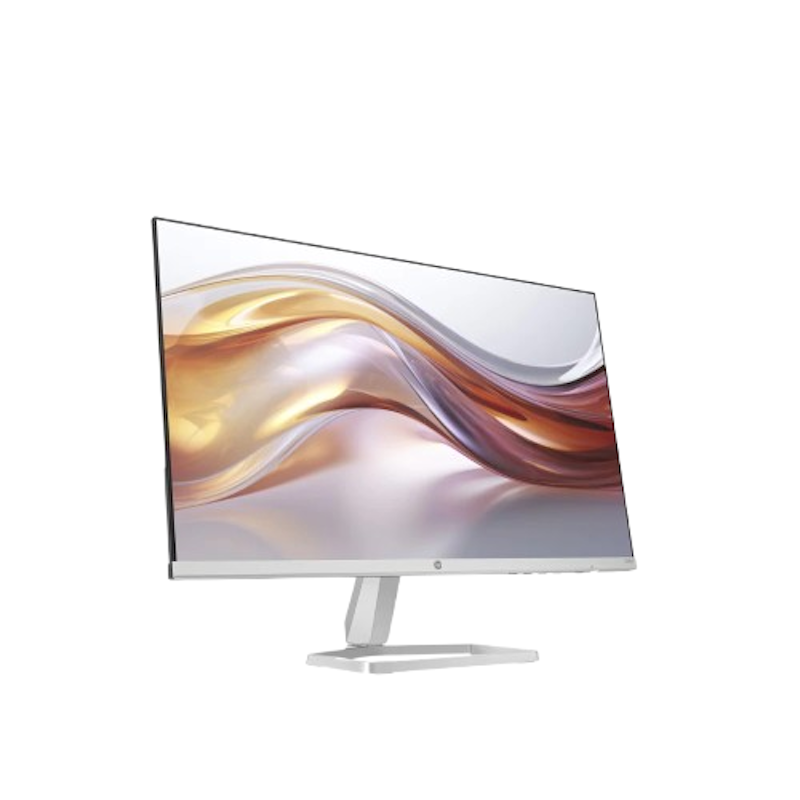
3 | Series 5 FHD Monitor|524SF HP |  | No.3 | 23.8in | 100Hz | 5ms | IPS | HDMI 1.4、VGA | Anti‑Glare、Low Blue Light | |
4 | 24U411A-B Monitor LG |  | No.4 | 23.8in | 120Hz | 5ms | IPS | HDMI、D-Sub、Audio Out | Flicker‑Free | |
5 | G27i 2026 Gaming Monitor Xiaomi |  | No.5 | 27in | 200Hz | 1ms | IPS | DisplayPort 1.4、HDMI 2.0、Audio Out | Low Blue Light、DC Dimming | |
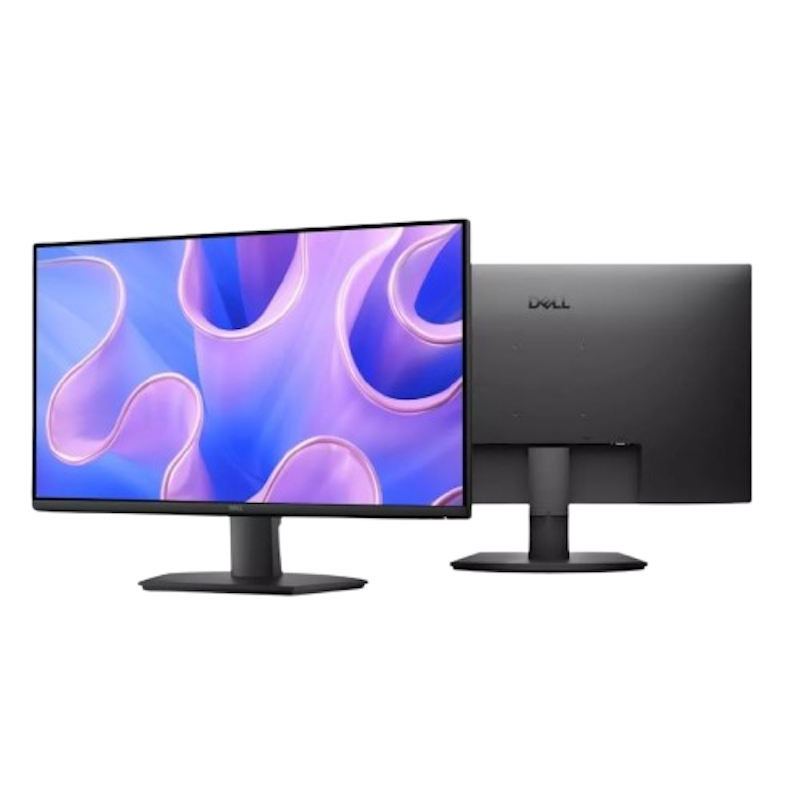
6 | 24-Inch Monitor|SE2425HM Dell |  | No.6 | 23.8in | 100Hz | 5ms | IPS | HDMI 1.4、VGA | TÜV Certified EyeCare、Anti‑Glare | |
7 | G2455 IPS Gaming Monitor|27'' 144HZ Nvision |  | No.7 | 27in | 144Hz | 1ms | IPS | HDMI、DisplayPort | Flicker‑Free、Low Blue Light | |
8 | KA272 G0bi Monitor Acer |  | No.8 | 27in | 120Hz | 1ms | IPS | HDMI、VGA | Flicker‑Free、Low Blue Light、Anti‑Glare | |
9 | 24.5" Monitor |Pro MP251 E14L MSI |  | No.9 | 24.5in | 120Hz | 1ms | IPS | HDMI 1.4、VGA | Anti‑Glare、Flicker‑Free、Low Blue Light | |
10 | IPS Monitor|24B36X AOC |  | No.10 | 23.8in | 144Hz | 0.5ms | IPS | DisplayPort 1.4、HDMI 1.4、Audio Out | Flicker‑Free、Low Blue Light | |

XiaomiG24i 2026 Gaming Monitor |

Reviews mention:
Users find it great for gaming, with a sharp 92 PPI image and an affordable price compared to other gaming monitors. Some note it can look slightly blurry if the OSD sharpness is lowered, so 50% works best. Many also highlight FreeSync Premium support as a standout feature.
| Screen Size | 23.8in |
|---|---|
| Refresh Rate | 200Hz |
| Response Time | 1ms |
| Panel Type | IPS |
| Connectivity Options | DisplayPort、HDMI、Audio Out |
| Eye Comfort Features | TÜV Low Blue Light |

Reviews mention:
Buyers highlight its vibrant IPS panel for accurate colors and better contrast than VA panels. They note no variable refresh rate, but the 60–100Hz range runs smoothly at 60Hz default. They also highlight it’s ideal for office work and works well in a dual-monitor setup.
| Screen Size | 23.8in |
|---|---|
| Refresh Rate | 100Hz |
| Response Time | 5ms |
| Panel Type | IPS |
| Connectivity Options | Headphone Jack、HDMI、DisplayPort |
| Eye Comfort Features | Flicker‑Free、Low Blue Light、ePaper Mode |
Reviews mention:
Customers say the slim borders and minimalist design make the screen feel wider and more modern. They love the vibrant colors and note it works well with MacBooks. Some say brightness must be adjusted manually in the app, but this doesn’t affect performance.
| Screen Size | 23.8in |
|---|---|
| Refresh Rate | 100Hz |
| Response Time | 5ms |
| Panel Type | IPS |
| Connectivity Options | HDMI 1.4、VGA |
| Eye Comfort Features | Anti‑Glare、Low Blue Light |

Reviews mention:
Shoppers consider the 120Hz refresh rate and low latency its top features, noting the responsive performance. Some say the display may first look washed out or too punchy. With adjustments, it performs well for gaming and delivers accurate colors for photo editing.
| Screen Size | 23.8in |
|---|---|
| Refresh Rate | 120Hz |
| Response Time | 5ms |
| Panel Type | IPS |
| Connectivity Options | HDMI、D-Sub、Audio Out |
| Eye Comfort Features | Flicker‑Free |

Reviews mention:
Reviewers love this gaming monitor for its 200Hz performance and vibrant IPS display. They note that to use higher refresh rates, you need to connect via DisplayPort, as HDMI is limited to 60Hz. Many say the IPS panel delivers a noticeable improvement over standard LCDs.
| Screen Size | 27in |
|---|---|
| Refresh Rate | 200Hz |
| Response Time | 1ms |
| Panel Type | IPS |
| Connectivity Options | DisplayPort 1.4、HDMI 2.0、Audio Out |
| Eye Comfort Features | Low Blue Light、DC Dimming |
Reviews mention:
Users like that this monitor reduces eye strain while delivering a clear Full HD display with accurate colors. They note the fast response and customizable brightness, contrast, and color settings. Many highlight the 100Hz IPS panel, praising the reliability of a well-known brand.
| Screen Size | 23.8in |
|---|---|
| Refresh Rate | 100Hz |
| Response Time | 5ms |
| Panel Type | IPS |
| Connectivity Options | HDMI 1.4、VGA |
| Eye Comfort Features | TÜV Certified EyeCare、Anti‑Glare |
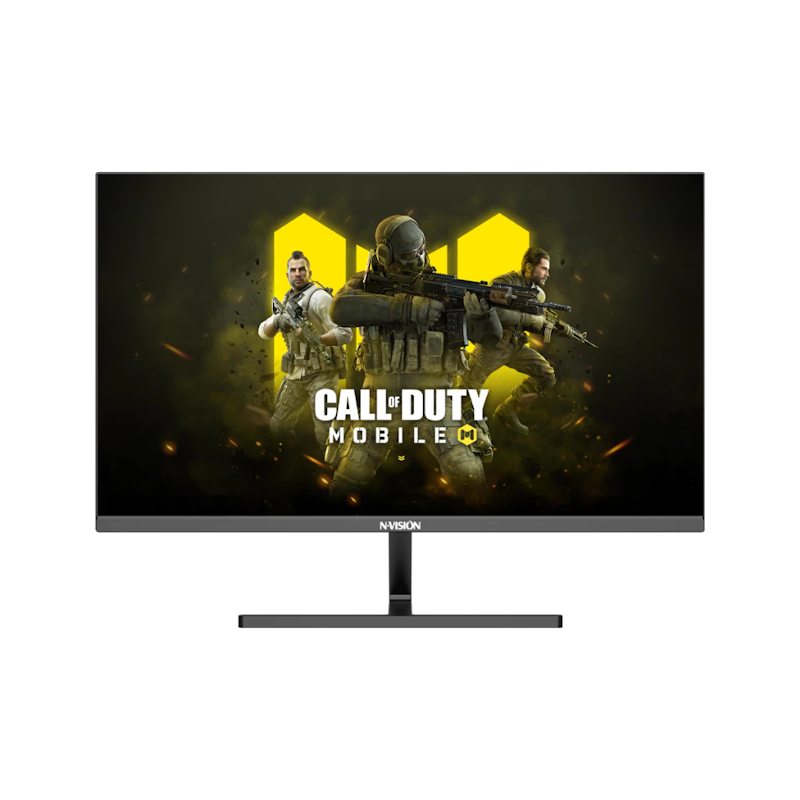
NvisionG2455 IPS Gaming Monitor | 27'' 144HZ
Reviews mention:
Those who have purchased this monitor say it delivers reliable performance for work and leisure at an affordable price. Many mention that setting it to 144Hz in PC settings makes a noticeable difference. They also like the large screen because it makes tasks easier to see and manage.
| Screen Size | 27in |
|---|---|
| Refresh Rate | 144Hz |
| Response Time | 1ms |
| Panel Type | IPS |
| Connectivity Options | HDMI、DisplayPort |
| Eye Comfort Features | Flicker‑Free、Low Blue Light |

Reviews mention:
Buyers rely on this monitor as a second screen for work-from-home tasks and other uses. They say the resolution matches the advertised specs, finding the screen size suitable for office work, school, or gaming. Many also mention the display is easy to view for long periods.
| Screen Size | 27in |
|---|---|
| Refresh Rate | 120Hz |
| Response Time | 1ms |
| Panel Type | IPS |
| Connectivity Options | HDMI、VGA |
| Eye Comfort Features | Flicker‑Free、Low Blue Light、Anti‑Glare |
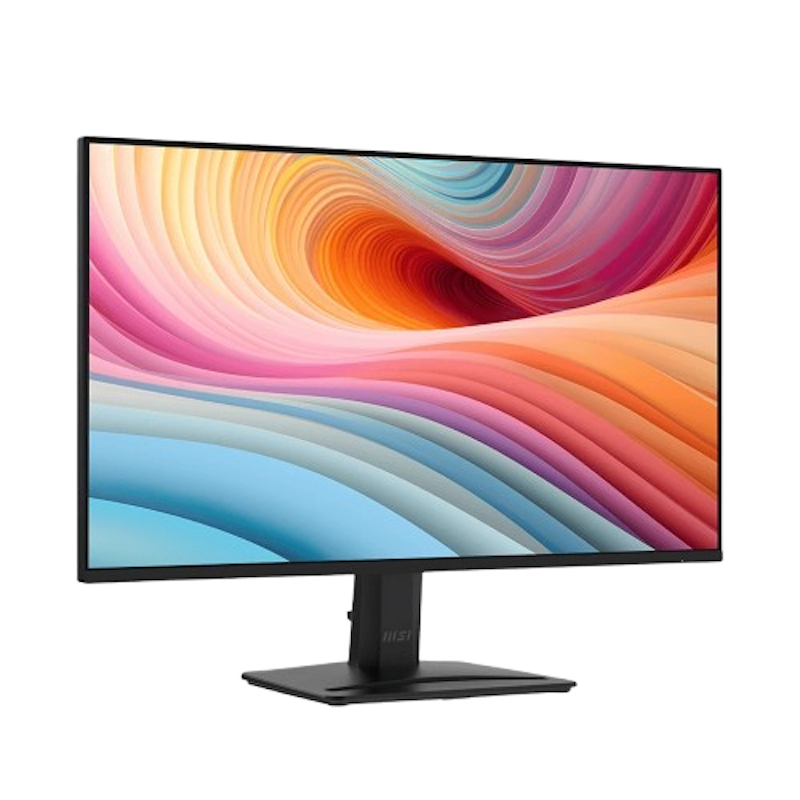
| Screen Size | 24.5in |
|---|---|
| Refresh Rate | 120Hz |
| Response Time | 1ms |
| Panel Type | IPS |
| Connectivity Options | HDMI 1.4、VGA |
| Eye Comfort Features | Anti‑Glare、Flicker‑Free、Low Blue Light |
Reviews mention:
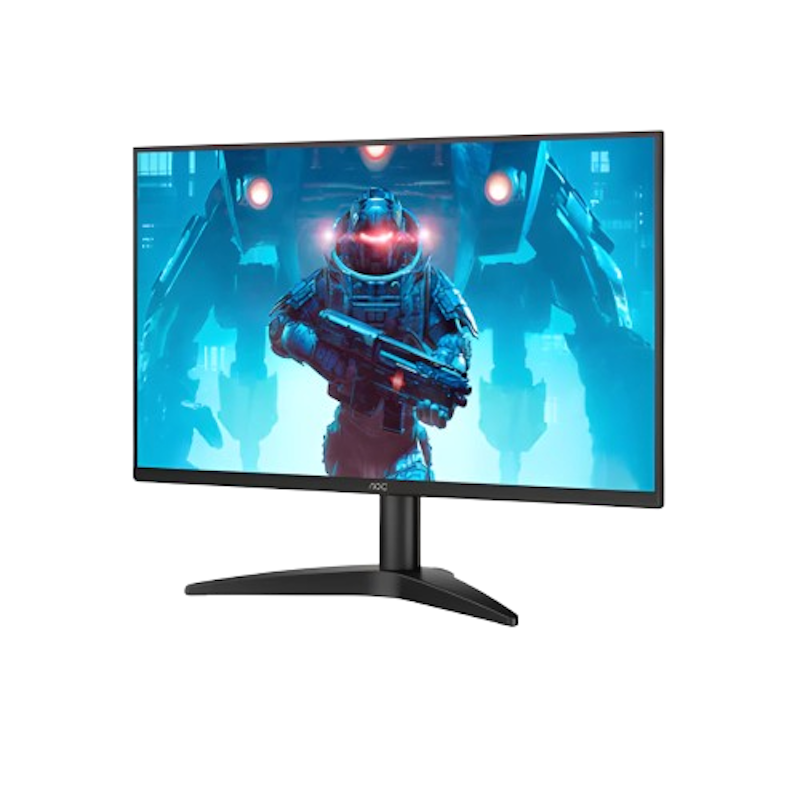
Shoppers agree the monitor delivers deep darks and vivid colors, even at 60–70% brightness. Some note that reaching 144Hz may require a DisplayPort cable, since HDMI is limited to 120Hz. They also like that it’s an affordable 144Hz monitor with DisplayPort support.
| Screen Size | 23.8in |
|---|---|
| Refresh Rate | 144Hz |
| Response Time | 0.5ms |
| Panel Type | IPS |
| Connectivity Options | DisplayPort 1.4、HDMI 1.4、Audio Out |
| Eye Comfort Features | Flicker‑Free、Low Blue Light |
Frequently Asked Questions
Below are some of the most asked questions on the web answered by the mybest team.
Is a 1080p Monitor Enough for Dual-Monitor or Extended Desktop Setups?
Yes, 1080p monitors work well in dual-monitor setups, offering enough screen space for multitasking and productivity. For a more seamless experience, choose two monitors of the same size and refresh rate to maintain consistent visuals.
Can a 1080p Monitor Be Used Comfortably With Laptops for Long Work Hours?
Yes, a 1080p monitor can be used comfortably with a laptop for long work hours. Connecting to a larger external display provides more screen space, reducing the need to squint or constantly switch between windows. For better comfort, choose a monitor with an adjustable stand, flicker-free technology, and a low-blue-light mode to help minimize fatigue during extended use.
How Long Can a Good 1080p Monitor Last With Regular Daily Use?
A good 1080p monitor can typically last around 5 to 7 years with regular daily use, and sometimes even longer with proper care. Most modern LED monitors are designed for thousands of hours of operation, so using them for work, study, or gaming each day is generally not an issue.
Are Built-In Speakers on 1080p Monitors Good Enough for Everyday Use?
Built-in speakers on 1080p monitors are generally good enough for basic everyday use, such as online meetings, casual video watching, or background music. They save space and reduce the need for external speakers, which is convenient for simple desk setups. However, sound quality is usually limited, with weaker bass and lower overall volume compared to dedicated speakers or headphones.
Complete Your Desktop Setup
Enhance your monitor with accessories designed to improve comfort and functionality. Discover our recommendations for monitor stands, PC speakers, and wireless mice to optimize your workspace and boost productivity, whether you're working, studying, or gaming.


How We Chose and Ranked Our Product Recommendations
Our buying guide was carefully researched and crafted by the mybest team of writers and editors. We used the buying guide as a basis for choosing and ranking the product recommendations, and we looked at reviews and ratings from different E-commerce sites like Lazada, Shopee, and more.
The descriptions of each product are referenced from content available on manufacturer, brand, and e-commerce sites.